


ADT Interactive


Downloads
Videos
FAQs
ADT Interactive - An Introduction
ADT Interactive: Getting Started
- Log in to your ADT Interactive account through the customer web portal.
Access the Customer Web Portal using a web browser on your PC, phone or tablet with an active internet connection.
Click the link below to be re-directed to the ADT Interactive Customer Web Portal. - You will be directed to the Home Screen.
From this page the user is able to configure and control all aspects of the account.
The Main Menu is used to navigate through the ADT Interactive features. - Set up New User Codes
Create Authorised Users to give access to your home/property. - Set Up Notifications
After you have created new users, assign them to receive Notifications.
Refer to Users and Notifications FAQs on the Self Help Desk to learn more about setting up User Codes and Notifications.
ADT Interactive: Web Portal Menu Summary
HOME
The Home Page displays an overview of the alarm system. Users are able to:
- View recent alarms.
- Check current alerts/issues.
- Preview alarm event history.
- Arm/Disarm remotely.
VIDEO
View video footage and configure settings for videos and devices.
- Live Video – View live video feed from installed cameras.
- Saved Video Clips – View previously saved video clips.
- Recording Schedules – Set up triggers to start recording.
- Settings – Configure settings for videos and Devices.
AUTOMATION
Configure/manage advanced features such as:
- Devices – View overview of home automation and energy management devices.
- Lights – Control light switches remotely.
- Thermostats – Configure thermostat settings.
- Rules – Manage Event-Triggered Rules.
NOTIFICATIONS
Set up and manage Push Notifications.
Refer to the Notifications FAQ to learn how to set up Push Notifications.
ACTIVITY
View previous events reported by system. Filter through the history using criteria based on:
- Date
- Device Type
- Specific Sensor
- Type of Event
USERS
Manage Alarm System Usercodes and ADT Interactive logins for the Customer Web Portal and ADT Interactive app.
- Users – Authorised Users can be assigned a number to disarm/give access to a home or property.
- Manage Logins – ADT Interactive can have multiple users that access your mobile and web account.
SETTINGS
- Login Information – manage login preferences like language, password and two factor authentication.
- Account Management – Change details of the property where the alarm system is installed.
- Devices – Manage settings of devices connected to ADT Interactive.
- Dealer Settings – Allows dealers or central station operators to access your system to perform actions on your behalf, view video and images, confirm system alarms, or monitor activity.
- Geo-Services – Notifications can be triggered based on your phone’s location. The Geo-Services page is where geo-triggered rules can be set up which activate these notifications.
ADT Interactive – Configure Customer App using Setup Wizards
Configure Customer app using setup wizards
There are two setup wizards (New User Setup and App Settings Migration) that appear upon first logging into the
Customer app to assist customers with getting the most out of their Alarm.com system right from the start. This also
ensures that customers continue to stay engaged with using their system.
Compatibility
The New User Setup and App Settings Migration Setup wizards are compatible with:
- IOS Devices
- Alarm.com Geo-Services is not supported on iPads
- Android Devices
New User Setup Wizard
The New User Setup wizard guides new customers through the set up for the best practices in the Customer app.
Primary customer logins have immediate access to engaging Customer app features. Using the New User Setup wizard,
primary customer logins are prompted to:
Note: The New User Setup wizard only launches the very first time the user logs into the Alarm.com app. So, if the user
closes the app after the wizard has launched, they are not able to return to the New User Setup wizard.
- Turn on Push Notifications
- This allows the user to receive notifications through the Alarm.com app
- Create a location-based arming reminder.
- This allows the user to receive a reminder to arm the system if the mobile device leaves the Geo-Fence.
- Turn on Geo-Services.
- This allows the user to automate their system based on the location of the mobile device.
- Create their first Geo-Fence
- This allows the user to adjust the Geo-Fence’s location and radius
- Subscribe the mobile device to notifications
- This allows the user to select which notifications they wish to receive.
Secondary customer logins are also connected to some of the features when they first login. Using the New User Setup
wizard, secondary customer logins are prompted to:
- Turn on push notifications
- Turn on Geo-Services
- Subscribe the mobile device to notifications
Note: If it’s the very first time the user is logging into either the Customer Website or app, the user also sees the Terms
& Condition agreements to review and agree to.
App Settings Migration Wizard
The Apps Settings Migration wizard allows for customers to transfer their Customer app settings to a new mobile device.
In just a few steps, customers with a new mobile device can seamlessly transfer their settings for push notifications,
Geo-Services, and other specific notification types.
Using the App Settings Migration wizard, the user is prompted to select either:
- Copy settings from another device – If the user selects to Copy settings from another device, the App Settings
Migration wizard prompts the user to:- Select the old mobile device to copy settings (i.e. push notifications or Geo-Services) and notifications from to
transfer the new mobile device. - Depending on which settings the old mobile device has, the wizard prompts the user to turn on push
notifications and/or Geo-Services. - Choose to replace the old device (remove it from the account after the migration to the new device is
complete), or add the new device to the notifications as an additional device on the account and the old device
is kept active.
- Select the old mobile device to copy settings (i.e. push notifications or Geo-Services) and notifications from to
- Set up as a new device – If the user selects to Set up as a new device, the App Settings Migration wizard prompts
the user to set up the new device for push notifications, Geo-Services, and subscribe to notifications.
ADT Interactive - Home Page Summary
The Home Page displays an overview of the alarm system using widget cards. Users are able to:
- View Recent Alarms.
- Check Current Alerts and Issues.
- Preview Alarm Event History/Activity.
- Arm and Disarm Remotely.
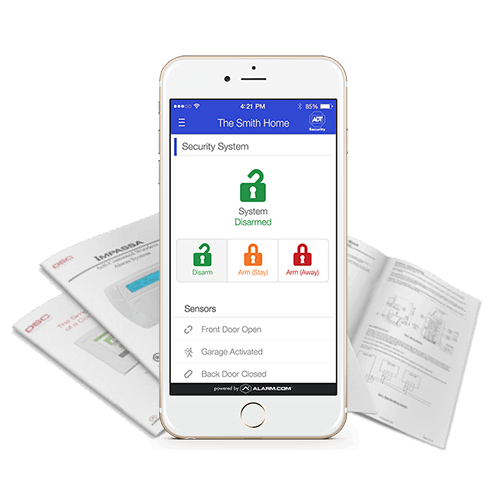
View Current Status of the Alarm Panel and Sensors
Alarms and Issues will be displayed at the top of the home page.
Sensors Widget Card
Displays the current status of the sensor.
- OK – No found issues.
- Open – Only applies to Doors/Windows. Will display open if Door/Window sensor is currently open.
- Activated – Only applies to motion sensors. Will display Activated if motion has been detected within the last 60 minutes.
- Idle – Only applies to motion sensors. Will display Idle if no motion has been detected within the last 60 minutes.
- Alarm! – Sensor has been tripped and activated the alarm. (Hard Wired smoke sensors need to be disarmed TWICE in order to reset)
- Bypassed – Any sensor bypassed is not “active” and will not trigger an alarm even if armed.
- Any Door/Window that was open during arming will be bypassed.
- User can directly bypass a sensor via control panel after it has been armed.
- To unbypass, close the sensor and re-arm the system.
- Low Battery – Sensor is reporting a low battery.
- Tampering/Malfunction – Sensor has lost contact with the panel or the sensor has been tampered with.
- N/A– Sensor state is unknown. If persists for more than a few hours, arrange service.
View the Sensor Page Summary FAQ on the Self Help Desk for more information.
Security Widget Card
Displays whether the system is currently armed or disarmed. You are able to remotely arm or disarm the system by clicking the shield icon.
Recent Activity Widget Card
Details recent events reported by the system.
Customise Home Screen Layout:
ADT CUSTOMER WEB PORTAL
- Select Home
- Hover mouse over Home and click the Configure Icon
- You are able to drag and drop the cards to customise the layout.
Hover mouse over the selected card and click the Move Icon to re-arrange cards.
ADT INTERACTIVE APP
- Launch the ADT Interactive Phone App.
Enter Username and Password to log in.
If you currently do not have the app downloaded on your smartphone, click the Download link below. - Click the Menu Icon
- Select App Settings
- Select Edit Home Screen
- Use the Check Boxes to add or remove cards from Home Screen.
- Use the Drag Handle to shuffle the order of cards from top to bottom.
ADT Interactive - Sensor Page Summary
Sensor Devices Page allows you to view the name, status and type of each sensor on the system.
- Log in to your ADT Interactive account through the customer web portal.
Access the Customer Web Portal using a web browser on your PC, phone or tablet with an active internet connection.
Click the link below to be re-directed to the ADT Interactive Customer Web Portal. - Click Settings
- Select Devices
- Select Devices again
Describes the sensor and it’s location. This name will be displayed on the Website and Notifications.
Sensor Name
Describes the sensor and it’s location. This name will be displayed on the Website and Notifications.
Sensor Type
Indicates the type of sensor e.g. Motion, Reed or Panic Button.
Sensor Status
Displays the current status of the sensor.
- OK – No found issues.
- Open – Only applies to Doors/Windows. Will display open if Door/Window sensor is currently open.
- Activated – Only applies to motion sensors. Will display Activated if motion has been detected within the last 60 minutes.
- Idle – Only applies to motion sensors. Will display Idle if no motion has been detected within the last 60 minutes.
- Alarm! – Sensor has been tripped and activated the alarm. (Hard Wired smoke sensors need to be disarmed TWICE in order to reset)
- Bypassed – Any sensor bypassed is not “active” and will not trigger an alarm even if armed.
- Any Door/Window that was open during arming will be bypassed.
- User can directly bypass a sensor via control panel after it has been armed.
- To unbypass, close the sensor and re-arm the system.
- Low Battery – Sensor is reporting a low battery.
- Tampering/Malfunction – Sensor has lost contact with the panel or the sensor has been tampered with.
- N/A– Sensor state is unknown. If persists for more than a few hours, arrange service.
Activity Monitoring
f enabled, you are able to see which doors or windows are opened and closed and when sensors have detected activity even when not armed.
Click the checkbox of the sensor under Activity Monitoring to enable.
| Sensor Name | Status | Type | Activity Monitoring | |
|---|---|---|---|---|
| 1 | Pir Kitchen | Ok (Activated) | Motion | |
| 2 | Reed Front Door | Ok (Closed) | Door/Window | |
| 3 | Pir Bedroom | Ok (Activated) | Motion | |
All sensors have Active Monitoring enabled.
Arming & Disarming - Arming The System
- Log in to your ADT Interactive account through the customer web portal.
Access the Customer Web Portal using a web browser on your PC, phone or tablet with an active internet connection.
Click the link below to be re-directed to the ADT Interactive Customer Web Portal. - Select Home from the menu.
- Click the Shield Icon on the Security Widget Card which displays current panel status.
- Click STAY to arm the system to stay mode, or AWAY to arm the system to away mode.
- Armed Away – Sets both contact sensors and motion sensor into an alarm state
- Armed Stay – Only sets contact sensors to an alarm state
Note: Systems with bypass capabilities will show a Bypass Sensors checkbox that, when checked, will not arm secured sensors.
Arming & Disarming - Disarming The System
- Log in to your ADT Interactive account through the customer web portal.
Access the Customer Web Portal using a web browser on your PC, phone or tablet with an active internet connection.
Click the link below to be re-directed to the ADT Interactive Customer Web Portal. - Select Home from the menu.
- Click the Shield Icon on the Security Widget Card which displays current panel status.
- Click Disarm.
Event History - Export The System Activity History
- Log in to your ADT Interactive account through the customer web portal.
Access the Customer Web Portal using a web browser on your PC, phone or tablet with an active internet connection.
Click the link below to be re-directed to the ADT Interactive Customer Web Portal. - Click Activity.
- Scroll down and click Export to Excel at the bottom of the page.
This feature is only available on the Customer Web Portal.
You are unable to export alarm activity as an excel document on the ADT Interactive app.
Event History - View The System Activity History
Viewing System Activity History through:
CUSTOMER WEB PORTAL via Web Browser
- Log in to your ADT Interactive account through the customer web portal.
Access the Customer Web Portal using a web browser on your PC, phone or tablet with an active internet connection.
Click the link below to be re-directed to the ADT Interactive Customer Web Portal. - Click Activity.
- From the Activity Page:
- Use the Search bar to view activity matching specific keywords.
- Use the All Devices dropdown menu to view activity from specific devices.
- The All Events dropdown menu filters activity by specific events.
- Use the Calendar Icon to view activity by specific times.
ADT INTERACTIVE APP ON SMARTPHONE DEVICE
- Launch the ADT Interactive Phone App.
Enter Username and Password to log in.
If you currently do not have the app downloaded on your smartphone, click the Download link below. - Click the History Icon located on the top right corner.
- Select Filters to filter by time or event type.
Geo-Services - Adding Geo-Devices
A Geo-Device must be setup in order to enable Geo-Services. Geo-Devices are any devices which have Geo-Services activated. They will appear on the Geo-Device List.
Adding a Geo-Device:
- Enable Location on your mobile phone. Apple Devices – Settings > Privacy > Location Services Android Devices – Settings > Connections > Location Note: This may differ depending on the software version installed on your phone.
- Launch the ADT Interactive Phone App.
Enter Username and Password to log in.
If you currently do not have the app downloaded on your smartphone, click the Download link below. - Enter Username and Password to login.
- Click the Menu Icon
- Select Geo-Services.
- Flip Toggle Switch to turn Geo-Services on.
Geo-Features and Geo-Fences can be set up once Geo-Services are enabled.
Geo-Devices cannot be added on the Customer Web Portal.
Add a Geo-Device by enabling Geo-Services on the mobile device.
Geo-Services - Geo-Fences
What is a Geo-Fence?
A Geo-Fence is an established perimeter which will trigger location based alerts based on the location of your Geo-Devices.
You are able to Add, Edit and Delete Geo-Fences. The area around the installation address of the alarm system is the Default Geo-Fence.
Add/Edit/Delete a Geo-Fence
- Log in to your ADT Interactive account through the customer web portal.
Access the Customer Web Portal using a web browser on your PC, phone or tablet with an active internet connection.
Click the link below to be re-directed to the ADT Interactive Customer Web Portal. - Click Settings.
- Select Geo-Services.
From the Geo-Services Page, you can Add, Edit or Delete Geo-Fences.
Add a Geo-Fence
- Click Add a Fence.
- Add Geo-Fence Location: Click and Drag the Drop-down Pin on the map or enter a new address in the Move fence location to: field.
- Enter Geo-Fence Name: Enter the name of the Geo-Fence in Fence Name: field.
- Set Fence Radius: Click and Drag boundary markers OR manually enter a value in the Radius field.
- Click Save.
Edit a Geo-Fence
- Click the Fence Name or the Drop-down Pin of the Fence to edit.
- Change Geo-Fence Location: Click and Drag the Drop-down Pin on the map or enter a new address in the Move fence location to: field.
- Change Geo-Fence Name: Change the name of the Geo-Fence in Fence Name: field.
- Edit Fence Radius: Click and Drag boundary markers OR manually enter a value in the Radius field.
Delete a Geo-Fence
- Click the Fence Name or the Drop-down Pin of the Fence.
- Click the Delete Icon.
This feature is only available on the Customer Web Portal.
You are unable to add, edit or delete Geo-Fences on the ADT Interactive app.
Logins - Change A Password
- Log in to your ADT Interactive account through the customer web portal.
Access the Customer Web Portal using a web browser on your PC, phone or tablet with an active internet connection.
Click the link below to be re-directed to the ADT Interactive Customer Web Portal. - Click on Settings.
- Select Login Information.
- Click Password.
- Current Password field – Enter the current password
- New Password field – Enter the new password
- Verify Password Field – Enter the new password again
- Select Update.
This feature is only available on the Customer Web Portal.
You are unable to access Login Information on the ADT Interactive app.
Logins - Change An Email Address
- Log in to your ADT Interactive account through the customer web portal.
Access the Customer Web Portal using a web browser on your PC, phone or tablet with an active internet connection.
Click the link below to be re-directed to the ADT Interactive Customer Web Portal. - Click on Settings.
- Select Login Information.
- Select Email Address.
- Email Address field – Enter the new email address
- Click Update.
This feature is only available on the Customer Web Portal.
You are unable to access Login Information on the ADT Interactive app.
Logins - Create A New Login
- Log in to your ADT Interactive account through the customer web portal.
Access the Customer Web Portal using a web browser on your PC, phone or tablet with an active internet connection.
Click the link below to be re-directed to the ADT Interactive Customer Web Portal. - Click Users.
- Select Manage Logins.
- Click Add a Login.
- Email Address field – Enter the new user’s email address
- Login Name field – Enter the new user’s desired login name
- Language Preference – Select the new user’s language preference using the Language Preference dropdown menu.
- Click Save.
This feature is only available on the Customer Web Portal.
You are unable to access Users on the ADT Interactive app.
Logins - Enable Two-Factor Authentication
Two-Factor Authentication provides an additional layer of security to your account by requiring user confirmation when the account is accessed from a new device.
To enable Two-Factor Authentication using the Customer Web Portal:
- Log in to your ADT Interactive account through the Customer Web Portal using a web browser on your PC, phone or tablet with an active internet connection. Click the link below to be re-directed to the ADT Interactive Customer Web Portal
- Click on Settings
- Click on Login Information
- Select Two-Factor Authentication.
- Select Email
- Verify the correct email is displayed (if incorrect, email can be changed from Settings → Login Information → Email Address)
- Click SEND
- In Verification Code, enter the code that is provided in the received email
- Click VERIFY
- In Device Name, enter the desired name for the current device that will be trusted – If the device is trusted, click to select Trust This Device
- Click NEXT
To enable Two-Factor Authentication using the ADT Interactive App:
- Log in to your ADT Interactive App
- Tap Menu
- Tap Login Information.
- Tap Two-Factor Authentication.
- Select Email.
- Verify the correct email is displayed (if incorrect, email can be changed from Menu → Login Information → Email Address)
- Tap Send.
- In Verification Code, enter the code that is provided in the received email.
- Tap Verify.
- In Device Name, enter the desired name for the current device that will be trusted.
- Tap Next.
Logins - Forgot Username And Password
Reset Username or Password through:
CUSTOMER WEB PORTAL
via Web Browser
- Click the following link to be directed to the ADT Interactive Customer Web Portal.
- Select Login Help
- Enter either:
- Your E-mail address if you have forgotten your login name.
- Your login name if you have forgotten your Password.
- Click Submit.
ADT INTERACTIVE APP
On Smartphone Device
- Launch the ADT Interactive Phone App.
Enter Username and Password to log in.
If you currently do not have the app downloaded on your smartphone, click the Download link below. - Select Login Help from the Login Screen.
- Enter either:
- Your E-mail address if you have forgotten your Username.
- Your Username if you have forgotten your Password.
- Your Username if you need assistance logging in for the first time.
- Click Submit.
Notifications - Create Or Edit An Alarm Notification
Create/Edit Notifications through:
CUSTOMER WEB PORTAL
via Web Browser
- Log in to your ADT Interactive account through the customer web portal.
Access the Customer Web Portal using a web browser on your PC, phone or tablet with an active internet connection.
Click the link below to be re-directed to the ADT Interactive Customer Web Portal. - Click Notifications.
- Click +New Notification. You will be directed to the Notification Catalogue.
- Select the Standard tab and Click Alarm.
- Ensure toggle switch is on to turn on the Notification.
- Name the new Notification.
- Setup Notification Criteria: When Alarm of type:
Click the Checkboxes for the alarm types to be notified about. Audible
Silent Notifications will be sent for Audible Alarms Is reported by:
Use the drop-down menu to select either:
Any Sensor: Notifications will be sent for any sensor
Specific Sensor: Use the Check Boxes to select which sensors will send Notifications. PIR Master Bedroom
Reed Front Door
PIR Kitchen
Notifications will be sent for PIR Master Bedroom and PIR Kitchen. Note: Do not choose to send a Duress Panic SMS or Push Notification to a potential Duress Code User. - Click the +Add Recipient button to choose notification recipients.
- Click the entries in the address book that are to be notified or select +New button to add a new address book contact.
- Click Close and then Save.
ADT INTERACTIVE APP
On Smartphone Device
- Launch the ADT Interactive Phone App.
Enter Username and Password to log in.
If you currently do not have the app downloaded on your smartphone, click the Download link below. - Click the Menu Icon
- Select Notifications.
- Flip the toggle switch to enable Push Notifications.
- Select Manage Notifications.
- Select Alarm.
- Set up the Notification Criteria: When Alarm of type:
Click the Checkboxes for the alarm types to be notified about. Audible
Silent Notifications will be sent for Audible Alarms Is reported by:
Use the drop-down menu to select either:
Any Sensor: Notifications will be sent for any sensor
Specific Sensor: Use the Check Boxes to select which sensors will send Notifications. PIR Master Bedroom
Reed Front Door
PIR Kitchen
Notifications will be sent for PIR Master Bedroom and PIR Kitchen. Note: Do not choose to send a Duress Panic SMS or Push Notification to a potential Duress Code User. - Click the +Add Recipient button to choose notification recipients.
- Click the entries in the address book that are to be notified or select +New button to add a new address book contact.
- Click Close and then Save.
Notifications - Create Or Edit Sensor Activity Notifications
Set up Sensor Activity Notifications through:
CUSTOMER WEB PORTAL
via Web Browser
- Log in to your ADT Interactive account through the customer web portal.
Access the Customer Web Portal using a web browser on your PC, phone or tablet with an active internet connection.
Click the link below to be re-directed to the ADT Interactive Customer Web Portal. - Click Notifications.
- Click +New Notification.
- Select Sensor Activity under the Standard Tab.
- Ensure toggle switch is on to turn on the Notification.
- Name the new Notification.
- When any of these sensors are open or activated:
Click the Checkboxes for the sensors that will send a notification when activated. E.g. Bedroom 1 P.I.R Bedroom 1 P.I.R - Configure the time frame for the rule to be active.
Select One Option using the Radio Buttons: At All Times
Only During The Following Times – Select Day(s) and Times - Notification Filtering: Do not send notifications that occur within (Select Time Frame) minutes of the last notification. Check this box to limit number of notifications sent within selected timeframe. Do not send notifications when any of the following Geo-Devices (Select Geo-Devices) are inside the selected Geo-Fence (Select Geo-Fence).Check this box to not receive notifications while there is a Geo-Device inside an established Geo-Fence.
- Click the +Add Recipient button to choose notification recipients.
- Click the entries in the address book that are to be notified or select +New button to add a new address book contact.
- Click Close and then Save.
ADT INTERACTIVE APP
On Smartphone Device
- Launch the ADT Interactive Phone App.
Enter Username and Password to log in.
If you currently do not have the app downloaded on your smartphone, click the Download link below. - Click the Menu Icon
- Select Notifications.
- Select Manage Notifications.
- Scroll down and select Sensor Activity.
- When any of these sensors are open or activated:
Click the Checkboxes for the sensors that will send a notification when activated. E.g. Kitchen P.I.R Kitchen P.I.R - Select One Option using the Radio Buttons: At All Times
Only During The Following Times - Notification Filtering: Do not send notifications that occur within (Select Time Frame) minutes of the last notification. Check this box to limit number of notifications sent within selected timeframe. Do not send notifications when any of the following Geo-Devices (Select Geo-Devices) are inside the selected Geo-Fence (Select Geo-Fence). Check this box to not receive notifications while there is a Geo-Device inside an established Geo-Fence.
- Click the +Add Recipient button to choose notification recipients.
- Click the entries in the address book that are to be notified or select +New button to add a new address book contact.
- Click Close and then Save.
Notifications - Deleting Notifications
Deleting Notifications through:
CUSTOMER WEB PORTAL
via Web Browser
- Log in to your ADT Interactive account through the customer web portal.
Access the Customer Web Portal using a web browser on your PC, phone or tablet with an active internet connection.
Click the link below to be re-directed to the ADT Interactive Customer Web Portal. - Click Notifications.
- Find the Notification to delete and click on it’s Delete icon
ADT INTERACTIVE APP
On Smartphone Device
- Launch the ADT Interactive Phone App.
Enter Username and Password to log in.
If you currently do not have the app downloaded on your smartphone, click the Download link below. - Click the Menu Icon
- Select Notifications.
- Select Manage Notifications.
- Find the Notification to delete and click on it’s Delete icon
Notifications - Fail to Close
Enter the operating hours for your business in order to receive Fail to Close Notifications. A Notification will be sent to your mobile device or email address if an arming event has not been received by the set schedule time.
Click the link below to log in to ADT Interactive
ADT INTERACTIVE CUSTOMER WEB PORTAL
Adding a Business Hours Schedule
- Click the Settings Tab on the Main Menu
- Select Business Hours
- Click the check box to enable Business Hours
- Select the day of the week to edit
- Click the drop-down box of Location is and select open – this will allow you to set schedule times. Select closed if the site is closed for that day
- Set the times by using the drop down lists
- Use the Copy Button if you wish to copy the same times to other days
- Click Save once completed.
Set up Fail to Close Notifications
- Select Notifications on the Main Menu
- Click +New Notification
- Under the Standard Tab, select Open/Close Event
- Select the check box of Not Closed on Time
Note: You can select additional events to receive notifications for other than the system not being closed on time. If you need further assistance setting up other schedule notifications, visit the Support Centre and submit a Support Ticket. - Click +Add Recipient to select whcih contacts will receive the Fail to Close Notification. Recipients will be displayed after being selected.
Note: Ensure that Mobile Devices have been added as contacts to receive Push Notifications - Click Save
Submit a Support Ticket
Submit a Support Ticket through:
- Log in to your ADT Interactive account through the customer web portal.
Access the Customer Web Portal using a web browser on your PC, phone or tablet with an active internet connection.
Click the link below to be re-directed to the ADT Interactive Customer Web Portal. - Click on the Help Icon
- Select Support Centre from the drop-down menu.
- Click on Create New Ticket.
- Complete the Form.
- Click Submit.
ADT Interactive App On Smartphone Device
- Launch the ADT Interactive Phone App.
Enter Username and Password to log in.
If you currently do not have the app downloaded on your smartphone, click the Download link below. - Click the Menu Icon
- Scroll to the bottom of menu and select Contact Support.
- Complete the Form.
- Click Submit.
Trouble Conditions - Alarm In Memory
What does Alarm in Memory mean?
A trouble condition which advises that there was a previous alarm in the panel memory and has not yet cleared from the ADT Interactive servers.
How do you resolve an Alarm in Memory trouble condition?
This can only be resolved through the ADT Interactive Customer Portal.
- Log in to your ADT Interactive account through the customer web portal.
Access the Customer Web Portal using a web browser on your PC, phone or tablet with an active internet connection.
Click the link below to be re-directed to the ADT Interactive Customer Web Portal. - Select the Click Here to clear this message link on the Alarm In Memory issue display.
Trouble Conditions - Device Low Battery
What does Device Low Battery mean?
A trouble condition which advises that a device is currently reporting a low battery status.
How do you resolve Low Battery Conditions?
Replace the battery of the device.
Note: A low battery condition for devices that are also powered by AC mains power could indicate that AC power could no longer be functioning correctly.
Trouble Conditions - Geo-Service Device In Malfunction
What does Geo-Service Device In Malfunction mean?
This trouble condition indicates that a device has failed to check in for 24 hours.
How to resolve a Malfunction for a Geo-Service Device
- Launch the ADT Interactive Phone App With the device in malfunction.
Enter Username and Password to log in.
If you currently do not have the app downloaded on your smartphone, click the Download link below. - Click the Menu Icon
- Select Geo-Services.
- Flip Toggle Switch to turn Geo-Services off.
- Click the Menu Icon again
- Scroll down and Click Log Out to log off ADT Interactive.
- Log in to ADT Interactive account through the Customer Web Portal.
Access the Customer Web Portal using a web browser on your PC, phone or tablet with an active internet connection.
Click the link at the bottom of the FAQ to be re-directed to the ADT Interactive Customer Web Portal. - Click Settings.
- Select Geo-Services.
- If the malfunctioning device is listed under Geo-Devices – Select the device and remove it by clicking it’s delete icon.
- While staying logged into the Customer Web Portal – Log in to the ADT Interactive Phone App once again on the same device.
- Click the Menu Icon
- Select Geo-Services.
- Flip Toggle Switch to turn Geo-Services on
- Refresh the Geo-Services page on the ADT Customer Portal Website (Log In again if necessary)
- Ensure the device is listed again under Geo-Devices.
Disable Malfunction Reporting from Geo-Devices (Android Devices Only)
- Log in to ADT Interactive account through the Customer Web Portal.
Access the Customer Web Portal using a web browser on your PC, phone or tablet with an active internet connection.
Click the link at the bottom of the FAQ to be re-directed to the ADT Interactive Customer Web Portal. - Click Settings.
- Select Geo-Services.
- Select the Device to be edited.
- Click the checkbox to uncheck Report Malfunction if Device fails to check in for 24 hours.
- Click Save.
Note: Malfunction Reporting can only be disabled for Android Devices.
Trouble Conditions - Sensor Bypassed
What does Sensor Bypassed mean?
A sensor is not actively monitored by the system due to it being in a not ready state upon arming.
How to resolve Sensor Bypasses
Disarm the system and re-arm it while all sensors are in a ready state.
Note: Sensors are bypassed differently depending on what type of panel it is. Refer to the panel’s user manual for instructions how to bypass.
Trouble Conditions - Sensor Malfunctions
What is a Sensor Malfunction?
A Security Sensor that is having difficulty communicating with the alarm panel.
How do you resolve a Sensor Malfunction?
- Re-locate the sensor closer to the alarm panel.
- Ensure the Panel and the sensor are not separated by metal.
- Rotate the sensor 90 degrees or move it to a different wall if it is a motion sensor.
- Replace the sensor’s batteries.
Trouble Conditions - Sensor Tampers
What does Sensor Tamper mean?
A sensor is reporting a tamper condition. This could possibly mean that the tamper switch has been released.
How to resolve Sensor Tampers
Ensure the tamper switch is secured for the device.
Test your alarm system to make sure it is reporting correctly.
Users - Create A New User Code
- Log in to your ADT Interactive account through the customer web portal.
Access the Customer Web Portal using a web browser on your PC, phone or tablet with an active internet connection.
Click the link below to be re-directed to the ADT Interactive Customer Web Portal. - Select Users
- Click Add User.
- Under User Information, enter the new user’s first and last name.
- Use the Language Preference dropdown menu to select the user’s language preference
- Click +Add to add the user’s contact information.
- Click Access Control to setup which devices the user has access to.
- Enter the user’s new user code.
- Click Save. This feature is only available on the Customer Web Portal. You are unable to Create Users on the ADT Interactive app.
Users - Delete A User Code
- Log in to your ADT Interactive account through the customer web portal.
Access the Customer Web Portal using a web browser on your PC, phone or tablet with an active internet connection.
Click the link below to be re-directed to the ADT Interactive Customer Web Portal. - Select Users
- Find the User to be deleted and click on their Delete icon
- To only remove access from an existing user, find the Access Icon under Access Control and select which Access Point to remove.
- Click Save.
This feature is only available on the Customer Web Portal.
You are unable to access Users on the ADT Interactive app.
Video - Change A Camera's Video Motion Detection Settings
Video Motion Detection (VMD) – Trigger recordings based on any detected motion by the cameras. The camera identifies motion by measuring how the video’s pixels change from one moment to the next. There are no PIR motion detectors built into the camera. However, when VMD is set up correctly, it can be an effective way to capture activity and generate notifications for the customer.
- Log in to your ADT Interactive account through the customer web portal.
Access the Customer Web Portal using a web browser on your PC, phone or tablet with an active internet connection.
Click the link below to be re-directed to the ADT Interactive Customer Web Portal. - Click Video.
- Click Settings.
- Select the video device to be edited from the Video Device dropdown menu.
- Click Video Motion Detection.
- For each Video Motion Detection (VMD) window:
- Draw a new VMD Window – Click and drag on the Live View image.
- Use the Sensitivity Drop-down Menu to select the motion sensitivity for the VMD Window.
Note: A high sensitivity will allow more motion to be detected by the camera and more clips to be recorded. - Use the Target Size dropdown menu to select the Motion Target Size.
Note: Target size reflects the percentage of the VMD window that must detect motion for a clip to be recorded.
A smaller target size will require less motion to trigger a recording, resulting in more recorded clips.
- Click Save.
This feature is only available on the Customer Web Portal.
You are unable to change Video Motion Detection settings on the ADT Interactive app.
Video - Change A Video Device Name
- Log in to your ADT Interactive account through the customer web portal.
Access the Customer Web Portal using a web browser on your PC, phone or tablet with an active internet connection.
Click the link below to be re-directed to the ADT Interactive Customer Web Portal. - Click Video.
- Click Settings.
- Select the video device to be edited from the Video Device dropdown menu.
- Click Video Device Info.
- Video Device Name field – enter the new device name.
- Click Save.
This feature is only available on the Customer Web Portal.
You are unable to change a video device name on the ADT Interactive app.
Video - Create Or Edit A Video Motion Detection Recording Schedule
- Log in to your ADT Interactive account through the customer web portal.
Access the Customer Web Portal using a web browser on your PC, phone or tablet with an active internet connection.
Click the link below to be re-directed to the ADT Interactive Customer Web Portal. - Click Video.
- Select Recording Schedules.
- Click +Add Schedule.
- Click Video Motion Detection.
- Ensure Toggle Switch is on to turn on the Recording Schedule.
- Name the new recording schedule.
- Use the Select a Camera drop down menu to select which camera will record a clip when motion is detected.
- Configure the time frame for the rule to be active.
Select One Option using the Radio Buttons: At All Times
Only During The Following Times – Select Day(s) and Times - Use the Minimum delay between camera-triggered clip uploads dropdown menu to limit the number of clips recorded.
- Use the At home settings to not record when the system is Disarmed or Armed Stay.
- To choose Video Clip Recipients, click +Add Recipients.
- Click the entries in the Address book that are to be notified, or click the +New button to add a new Address Book contacts.
- Click Close and Save.
Video - Take An Image Sensor Image (Peek-In)
To request a Peek-In:
- Log in to your ADT Interactive account through the customer web portal.
Access the Customer Web Portal using a web browser on your PC, phone or tablet with an active internet connection.
Click the link below to be re-directed to the ADT Interactive Customer Web Portal. - Click the Camera Icon on the Image Sensor card.
- Click either the Peek-In Next Motion Icon or the Peek-In Now Icon next to the desired Image Sensor.
- The image will be uploaded to the gallery and sent to any Peek-In notification recipients.
To configure Peek-In recipients:
- Log in to your ADT Interactive account through the customer web portal.
Access the Customer Web Portal using a web browser on your PC, phone or tablet with an active internet connection.
Click the link below to be re-directed to the ADT Interactive Customer Web Portal. - Click Automation.
- Click the ✏ Edit icon for Peek-Ins & Manual Image Uploads.
- Click the +Add Recipient button to choose notification recipients.
- Click the entries in the Address book that are to be notified, or click the +New button to add a new Address Book contact.
- Click Close and then Save.
ADT INTERACTIVE CUSTOMER WEB PORTAL CLICK HERE TO LOGIN
Video - View Saved Video
View Saved Video on:
CUSTOMER WEB PORTAL
via Web Browser
- Log in to your ADT Interactive account through the customer web portal.
Access the Customer Web Portal using a web browser on your PC, phone or tablet with an active internet connection.
Click the link below to be re-directed to the ADT Interactive Customer Web Portal. - Click Video.
- Select Saved Video Clips.
- To sort clips by camera, use the All Cameras dropdown menu.
- To sort clips by protected status, select either:
- Include protected clips icon
- Include unprotected clips icon.
- To sort by trigger, select either:
- Include event-triggered clips icon.
- Include camera-triggered clips icon
- To include deleted clips, click the Include Deleted Clips Icon.
- To search clips by description, enter criteria in the Clip Description field.
- To only include clips from a certain timeframe, use the From: To: fields.
ADT INTERACTIVE APP
On Smartphone Device
- Launch the ADT Interactive Phone App.
Enter Username and Password to log in.
If you currently do not have the app downloaded on your smartphone, click the Download link below. - Click the Menu Icon
- Click Video.
- Click on Saved Tab.
- Select Video to view.
- Videos are sorted by date by default. To filter videos, select the Filter Icon.